Import and export schema
Your discourse graph schema is the structure your notes follow: your node types, relation types, the relations allowed between them, and the templates your node types use. Export it to a single JSON file and share it with collaborators, so everyone starts from the same structure. When you import a file, you choose exactly what to bring in and which of your existing settings to keep.
To include templates, enable the core Templates plugin and set its template folder location.
What a schema file contains
| Item | What is included |
|---|---|
| Node types | Name, format, template, description, shortcut, color, tag, key image, and folder path |
| Relation types | Label, complement, and color |
| Relation triples | Which relation types connect which node types (for example, Evidence supports Claim) |
| Templates | The full contents of each selected template file |
A schema file never contains your notes or discourse nodes. To share nodes, see Sync and import.
Export your schema
- Open the export window in one of these ways:
- Open Obsidian Settings, go to Discourse Graph > General, and click Open export modal next to Export discourse graph schema.

- Open the command palette (
Cmd/Ctrl + P) and run Export discourse graph schema.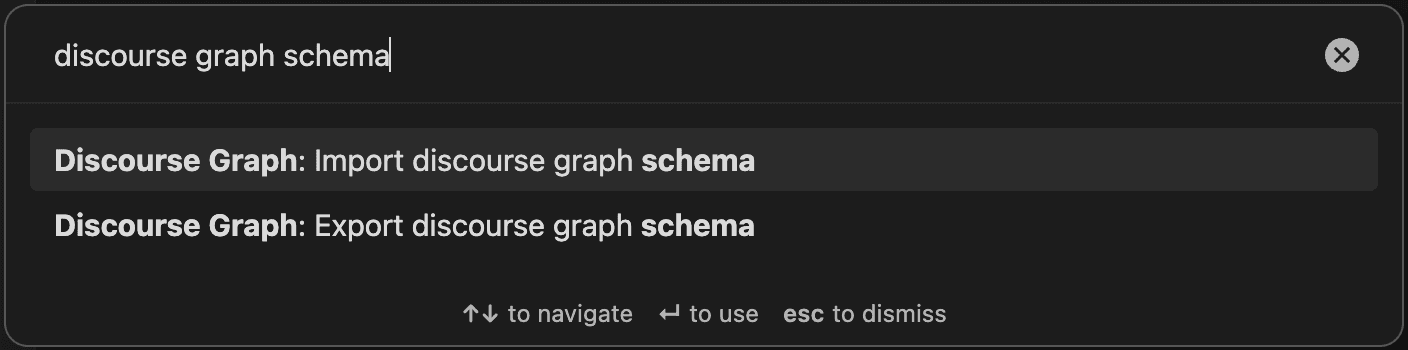
- Open Obsidian Settings, go to Discourse Graph > General, and click Open export modal next to Export discourse graph schema.
- Choose what to include. Everything is selected by default, except templates that no node type uses.
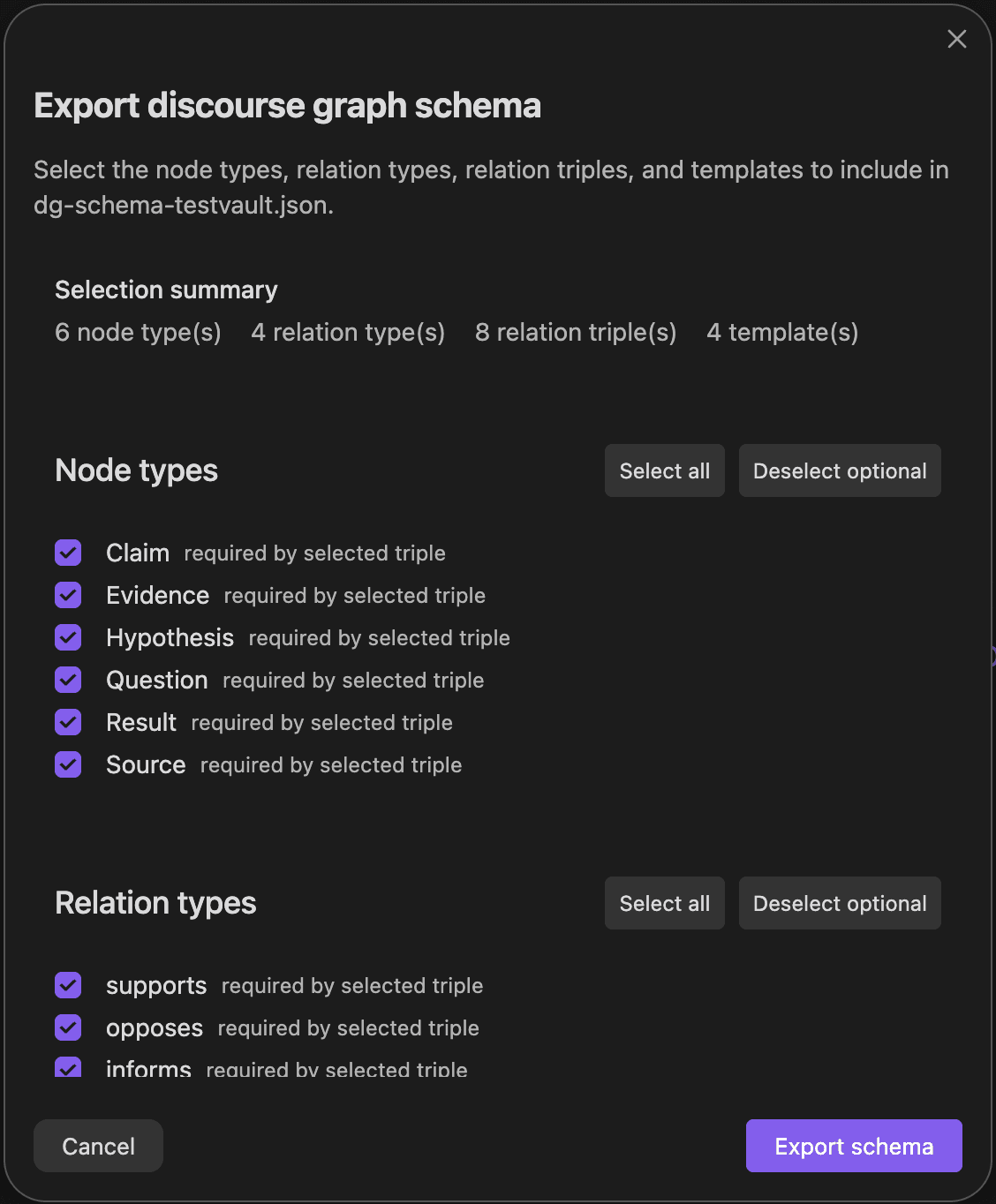
- Click Export schema and choose where to save the file. It is named after your vault by default, for example
dg-schema-lab-notebook.json.
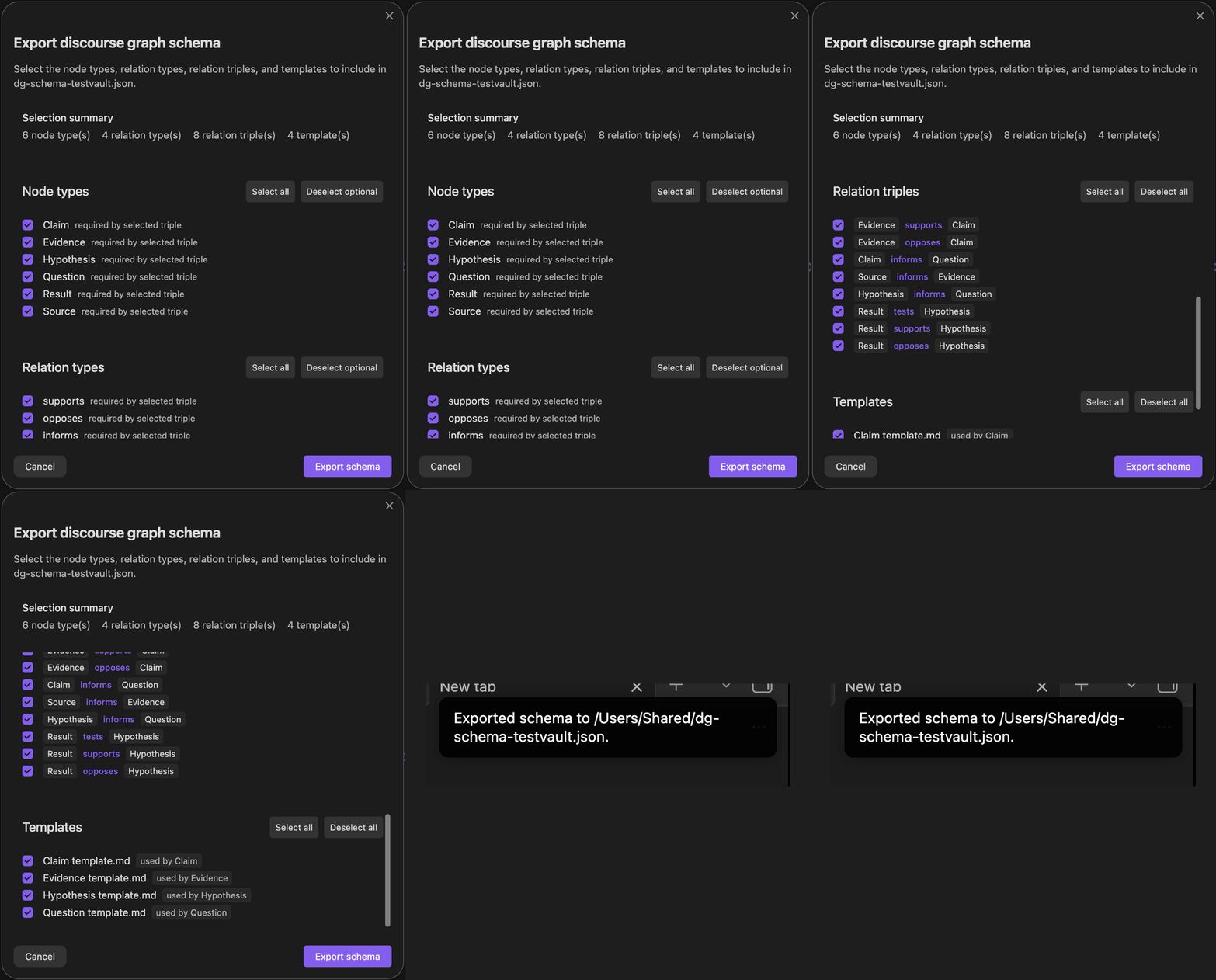
Required items
A selected relation triple needs its node types and its relation type. Those items are marked required by selected triple and stay selected. To remove one, first deselect every triple that uses it.
Use Select all and Deselect optional for node types and relation types, and Select all and Deselect all for triples and templates.
Share the file
Send the .json file to your collaborators however you like, for example by email, chat, or a shared drive. Anyone with the Discourse Graph plugin can import it into their own vault.
Import a schema
- Open the command palette (
Cmd/Ctrl + P) and run Import discourse graph schema. - Click Choose schema file and pick a
dg-schema-*.jsonfile. - Review the preview. It shows which vault the file came from, when it was exported, and how many items are new or already in your vault. Node types and relation types you already have are tagged in vault, identical or in vault, N field(s) differ.
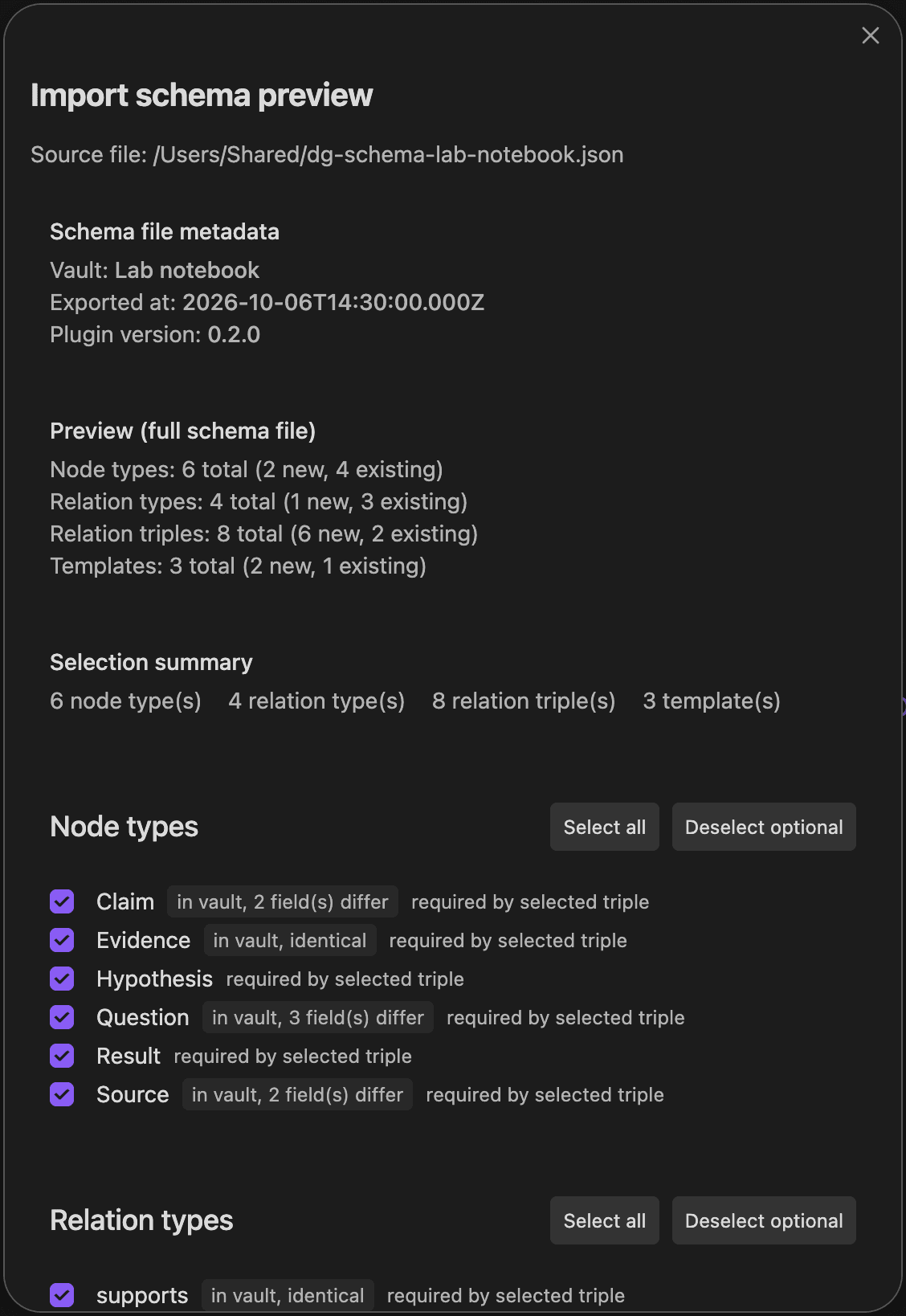
- Choose what to import. Everything is selected by default, and the same required items rule applies.
- Click Import selected. If any selected item differs from what is already in your vault, the button reads Choose what to keep (N) instead, where N is the number of items that differ, and opens the next step.
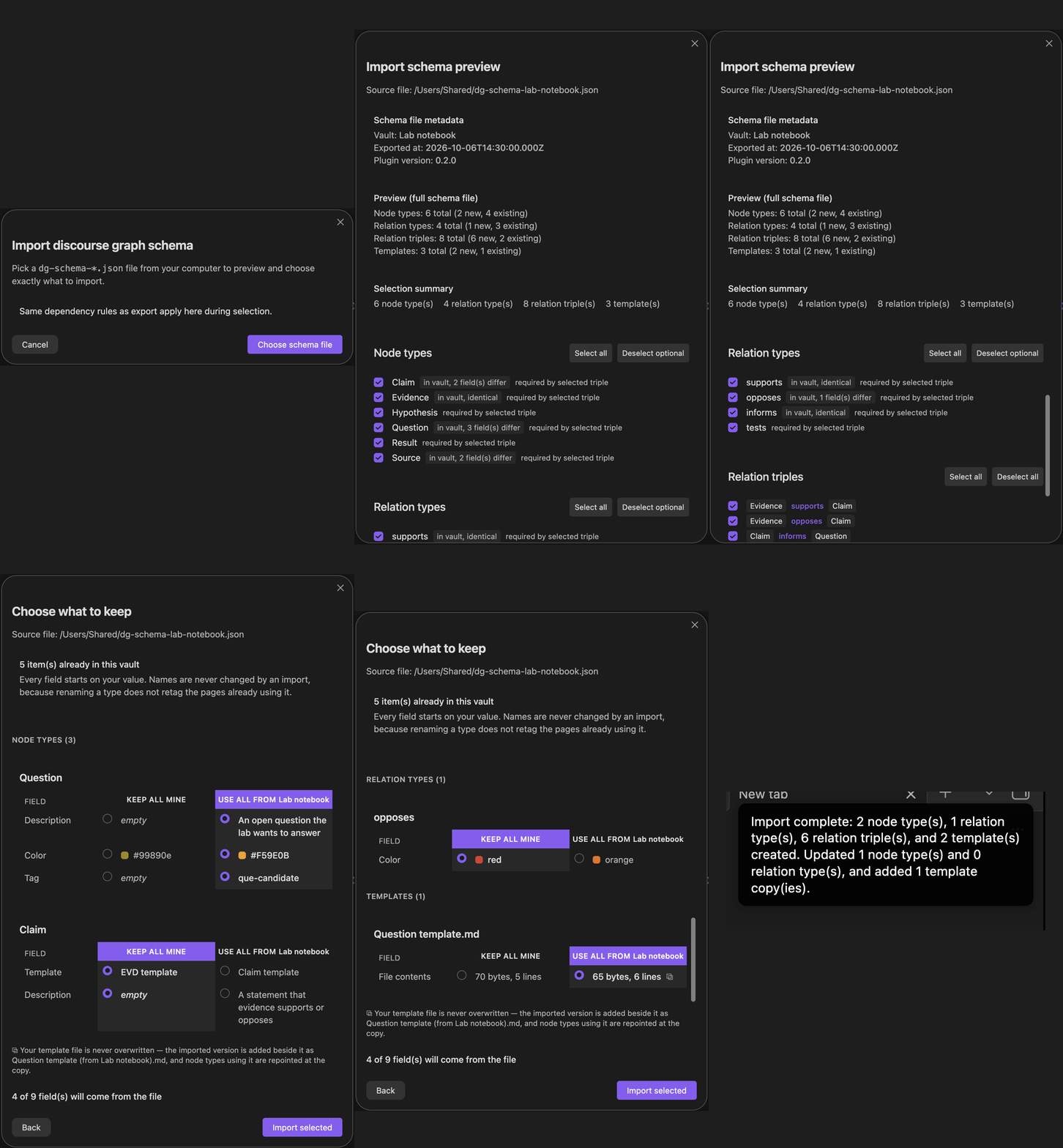
When the import finishes, a notice lists what was created and updated.
Choose what to keep
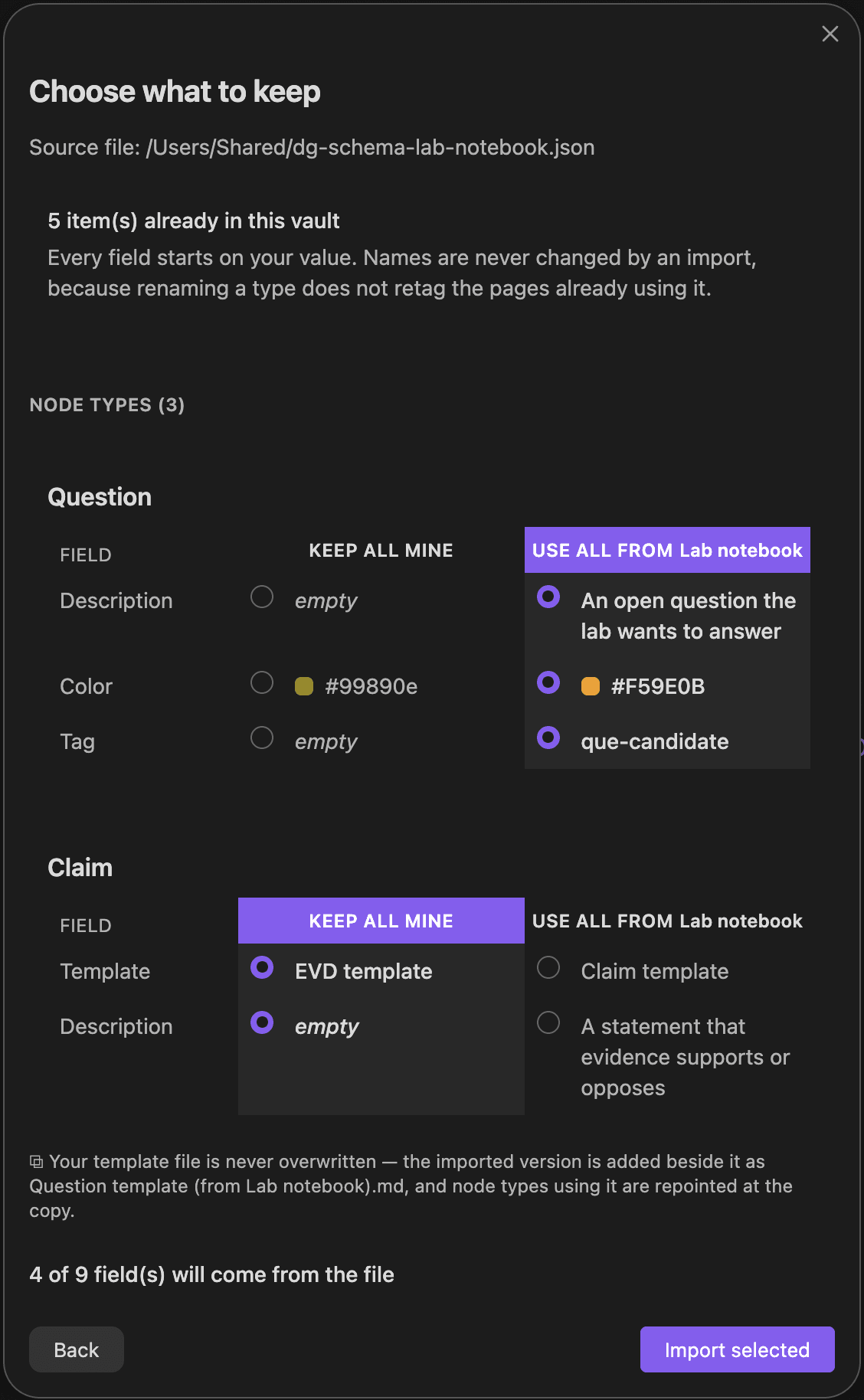
When a selected item already exists in your vault with different settings, you decide field by field which value to keep. A node type or relation type counts as existing when it has the same name or label, ignoring capitalization, or one was originally imported from the other. A template counts as existing when a template file with exactly the same name is already in your vault.
- Every field starts on your current value, so nothing changes unless you choose it.
- Click Keep all mine or Use all from <vault name> to switch every field of an item at once, or pick each field on its own.
- The count at the bottom shows how many fields will come from the file.
An import never renames anything. Renaming a node type would not update the notes that already use it.
Templates
Importing never overwrites one of your template files. If you choose the file’s version of a template you already have, it is added next to yours as <template name> (from <vault name>).md, and node types whose settings you also take from the file switch to the new copy. Node types where you keep all your own values keep using your original template.
Troubleshooting
- “Schema file is incompatible with this version of the plugin”: the file is not a schema export, or it came from an incompatible plugin version. Make sure both vaults use the latest plugin version, then export again.
- Templates are skipped: enable the core Templates plugin and set its template folder location, then export or import again.
- “Relation … skipped: it references a type that is not in this vault”: select the node types and relation type that the triple uses, then import again.
- Fewer types than expected: if one file has two types whose names differ only in capitalization, such as “claim” and “Claim”, they are imported as one type.
- “Template … not imported: template already imported from this space”: a copy of that template from the same vault already exists from an earlier import. Delete or rename that copy if you want to import it again.